192.168.0.1 Router Admin Login
192.168.0.1 is the second most common router address. D-Link, Tenda, TOTOLINK and newer TP-Link routers ship with it, as do many cable gateways. It is often mistyped as 192.168.o.1, 192.168.0.l, 192.168 0.1 — those versions will not open it.
Username / password: admin / admin
Also try: cusadmin / password
· Not opening? Try 192.168.1.1, 10.0.0.1, 192.168.1.254
Contents
- How to get access the 192.168.0.1?
- 192.168.0.1 or 192.168.l.0 or 192.168.o.1 which correct?
- Forgot IP Address Username and Password?
- Troubleshooting Common Issues
- Default 192.168.0.1 username and password
- Routers and ISPs that use 192.168.0.1
- Ways people mistype 192.168.0.1
- Find your router’s IP address
- 192.168.0.1 network details
- Frequently asked questions
- Other router IP addresses
192.168.0.1 is an IP address that is commonly used as the default gateway for many routers, including popular brands such as Netgear, Tenda, D-Link, and TP-Link. It is a private IP address, reserved for use within local area networks (LANs), and is often used as the default IP address for routers from various manufacturers.
To log in to your router, you’ll need to enter this address into your web browser’s address bar. Once you’re logged in, you’ll be able to change your router’s settings, such as its Wi-Fi password and network name.
How to get access the 192.168.0.1?
To access the 192.168.0.1 IP address, follow the steps below:
- Connect your device (computer, smartphone, etc.) to the local network that is connected to the gateway or router.
- Open a web browser and enter “http://192.168.0.1” in the address bar.
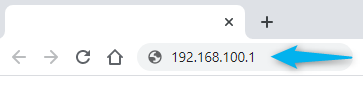
- Press “Enter” on your keyboard, and you should be directed to the gateway’s login page.
- Enter the username and password for the gateway. If you have not changed the default credentials, you can find them in the router’s manual or the manufacturer’s website. (or check the default username and password list)
Once you have successfully logged in, you will have access to the router’s settings and configurations. From here, you can customize various aspects of your network, such as setting up a wireless network, changing the network name (SSID), setting up a password, managing connected devices, configuring security settings, and much more.
192.168.0.1 or 192.168.l.0 or 192.168.o.1 which correct?
The correct IP address is 192.168.0.1, 192.168.l.0 and 192.168.o.1 is not a valid IP address format.
IP addresses are used to uniquely identify devices on a network, and they consist of four sets of numbers separated by periods (.) in the format of xxx.xxx.xxx.xxx. Each set can have a value between 0 and 255.
An IP address is not valid if it contains the letter “l” instead of the number 1, or the letter “o” instead of 0. IP addresses can only consist of numerical values and periods, and using any other characters, including letters or spaces, would make the IP address invalid.
Some examples are given below:
Correct:
- 192.168.0.1
Incorrect:
- 192.168.l.0
- 192.168.o.1
- 192.168.o.1.1
- 192.168.l.0.1
- 192.168.01
Forgot IP Address Username and Password?
If you have forgotten the username and password for accessing the 192.168.0.1 login page, don’t worry. Here are some steps you can take to reset them:
Try the default username and password:
Many routers come with default credentials that are commonly used across different models and manufacturers. You can find these default credentials in the user manual or the router’s label. Common default usernames are “admin” or “user“, and common default passwords are “password” or “admin“. Try these combinations to see if they work for your router.
Factory reset the router:
If you can’t remember the username and password, you can perform a factory reset on your router. This will reset all the settings to their default values, including the username and password. To do this, locate the reset button on your router (usually a small button at the back or bottom of the router), press and hold it for about 10 seconds using a paperclip or a pin until the router restarts.
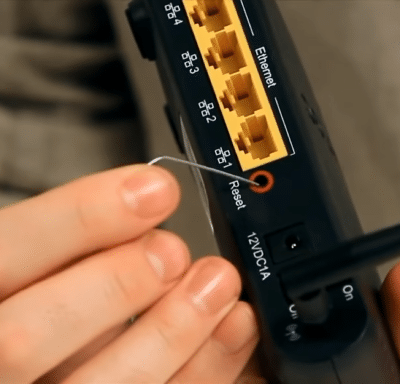
After the reset, you can access the router’s web-based interface using the default username and password.
Contact the router manufacturer or ISP:
If you still can’t log in to the router after trying the default credentials and performing a factory reset, you can contact the router manufacturer or your Internet Service Provider (ISP) for assistance. They may be able to provide you with the correct username and password or guide you through the process of resetting them.
It’s important to note that resetting the router to factory defaults will erase all your previous configurations, including custom network settings, security settings, and connected devices. So, it’s recommended to backup your settings before performing a factory reset if possible.
Troubleshooting Common Issues
While the process of logging in to 192.168.0.1 is generally simple, you may encounter some common issues. Here are some troubleshooting tips to help you overcome these challenges.
Incorrect IP address
Ensure that you have entered the correct IP address “192.168.0.1” in your web browser’s address bar. Double-check for any typographical errors and make sure there are no extra spaces or characters.
Forgotten or changed router credentials
If you have forgotten or changed the default username and password for your router, you may need to reset the router to its factory settings. This can usually be done by pressing the reset button on the back of the router for a few seconds. However, note that resetting the router will erase all previous configurations, and you will need to reconfigure your network settings from scratch.
Router not responding
If your router is not responding when you try to access the web-based interface through the 192.168.0.1 login, try restarting your router and device. If the issue persists, check the physical connections and ensure that your device is connected to the correct network.
Firewall or antivirus settings
Firewall or antivirus software on your device may block access to the router’s IP address. Temporarily disable them and try accessing the IP address again.
Firmware updates
Outdated firmware on the router may cause issues with accessing the IP address. Check for firmware updates on the manufacturer’s website and install them if needed.
If you are still unable to access the 192.168.0.1 IP address or encounter other issues, it’s recommended to consult the router’s manual or contact the manufacturer’s customer support for further assistance.
Default 192.168.0.1 username and password
These are factory logins for devices that use 192.168.0.1. If you or your ISP changed the password, it will not work — reset the router to restore it.
By router brand
“Official doc” rows link to the manufacturer’s or ISP’s own documentation, via the ssid.ai router dataset (CC BY 4.0).
By internet provider
“Official doc” rows link to the manufacturer’s or ISP’s own documentation, via the ssid.ai router dataset (CC BY 4.0).
Routers and ISPs that use 192.168.0.1
- D-Linkdlinkrouter.local · 192.168.0.1 · 192.168.1.1
- Tendatendawifi.com · 192.168.0.1
- TP-Linktplinkwifi.net · 192.168.0.1 · 192.168.1.1 · 192.168.68.1 · 192.168.0.254
- TOTOLINKitotolink.net · 192.168.0.1 · 192.168.1.1
- ZTE192.168.1.1 · 192.168.0.1
- ARRIS / Surfboard192.168.100.1 · 192.168.0.1
- Netgearrouterlogin.net · 192.168.1.1 · 192.168.0.1 · 192.168.100.1
- COMFAST192.168.10.1 · 192.168.0.1
- Hitron192.168.0.1
- Technicolor192.168.0.1 · 10.0.0.1 · 192.168.15.1
- Ruckusunleashed.ruckuswireless.com · 192.168.0.1
- Kaon (Kaonmedia)192.168.0.1
- Sagemcom192.168.0.1
- Ubee192.168.0.1
- ACT FibernetIndia · 192.168.0.1, 192.168.1.1
- HathwayIndia · 192.168.0.1, 192.168.1.1, 192.168.100.1
- ExcitelIndia · 192.168.1.1, 192.168.0.1
- StormFiberPakistan · 192.168.0.1, 192.168.1.1, 192.168.100.1
- Zong 4GPakistan · 192.168.8.1, 192.168.0.1
- Smart BroPhilippines · 192.168.8.1, 192.168.0.1, 192.168.1.1
- CoxUnited States · 192.168.0.1
- Verizon FiosUnited States · 192.168.1.1, 192.168.0.1
- Sky BroadbandUnited Kingdom · 192.168.0.1
- Virgin MediaUnited Kingdom · 192.168.0.1
- VodafoneUK / Germany / Italy · 192.168.1.1, 192.168.8.1, 192.168.0.1
- CenturyLink / Quantum FiberUnited States · 192.168.0.1
- RogersCanada · 10.0.0.1, 192.168.0.1
- TelstraAustralia · 192.168.0.1
- OptusAustralia · 192.168.0.1
- Claro (Brasil)Brazil · 192.168.0.1
- SaskTelCanada · 172.16.1.254, 192.168.0.1, 192.168.1.1
- au Hikari (KDDI)Japan · 192.168.0.1
- BrightspeedUnited States · 192.168.0.1
- NOW BroadbandUnited Kingdom · 192.168.0.1
- ThreeUnited Kingdom · 192.168.0.1
- izziMexico · 192.168.0.1
Ways people mistype 192.168.0.1
An IPv4 address is four numbers separated by three dots. These are the versions people type by mistake — none of them will open your router:
| What people type | Why it fails |
|---|---|
| 192.168.o.1 | The letter “o” instead of the number 0. |
| 192.168.0.l | The letter “l” instead of the number 1. |
| 192.168 0.1 | A space instead of a dot. Browsers read anything with a space as a search phrase. |
| 192.168.01 | A missing dot, so it is not a valid address. |
| 168.192.0.1 | The numbers are in the wrong order. |
The correct address is 192.168.0.1. Type it in the address bar, not the search box, with http:// in front.
Find your router’s IP address
If the address on this page does not open, your router uses a different one. Your device already knows it — it is called the default gateway.
- Windows: press Win + R, type
cmd, then runipconfig. Look for “Default Gateway”. - Mac: System Settings → Network → Wi-Fi → Details → TCP/IP → “Router”.
- Android: Settings → Wi-Fi → tap your network (or the gear icon) → “Gateway” or “Router”.
- iPhone / iPad: Settings → Wi-Fi → tap ⓘ next to your network → “Router”.
- Linux: run
ip route | grep default. - Label: most routers print the login address on a sticker underneath.
192.168.0.1 network details
192.168.0.1 is a private address, so it only works inside your home or office network. Anyone outside sees your public IP instead.
| Address type | Private (not reachable from the internet) |
|---|---|
| Private block | 192.168.0.0/16 (Class C private) |
| Usual network | 192.168.0.0/24 |
| Subnet mask | 255.255.255.0 |
| Usable addresses | 192.168.0.1 – 192.168.0.254 (254) |
| Broadcast | 192.168.0.255 |
| Typical DHCP pool | Set by the router — often 192.168.0.100 – 192.168.0.199 or 192.168.0.2 – 192.168.0.254 |
Frequently asked questions
What is 192.168.0.1?
192.168.0.1 is a private IP address used as the admin (login) page of a router or modem. It is used by D-Link, Tenda, TP-Link, TOTOLINK, ZTE.
What is the default password for 192.168.0.1?
The most common default is username admin and password admin. Many newer routers print a unique password on the label instead.
Why can’t I open 192.168.0.1?
You must be connected to that router, and the router must actually use 192.168.0.1. Check your default gateway, turn off VPN, and type http://192.168.0.1 in the address bar.
Is it safe to change settings at 192.168.0.1?
Yes, as long as you note what you change. The worst case is fixed with a factory reset. Always change the default admin password.
Can I access 192.168.0.1 from outside my home?
No. 192.168.0.1 is private and only reachable from inside the network. Some routers offer remote management or an app for that.