192.168.254.254 Router Admin Login
192.168.254.254 is mostly seen in the Philippines on Globe At Home prepaid Wi-Fi and older PLDT DSL modems, and on some older DSL gateways elsewhere. It is often mistyped as 192.168.254.25, 192.168 254.254, 192.168.254254 — those versions will not open it.
Username / password: admin / 1234
· Not opening? Try 192.168.1.1, 192.168.0.1, 10.0.0.1
Contents
- How to login to 192.168.254.254?
- Default Username and Passwords for 192.168.254.254
- Forgot IP Address Username and Password?
- How to change WiFi password and name (SSID)?
- Default 192.168.254.254 username and password
- Routers and ISPs that use 192.168.254.254
- Ways people mistype 192.168.254.254
- Find your router’s IP address
- 192.168.254.254 network details
- Frequently asked questions
- Other router IP addresses
The address 192.168.254.254 is commonly used by router manufacturers as the default gateway to access your router’s management interface. 192.168.254.254 is the default IP address of Globe At Home, PLDT, and Frontier to change the Wi-Fi password, customize SSID (network name), and adjust other router settings like parental controls, port forwarding, and guest networks.
How to login to 192.168.254.254?
To log in to the 192.168.254.254 admin panel, follow these steps:
- Open your preferred web browser, such as Chrome, Firefox, or Safari.
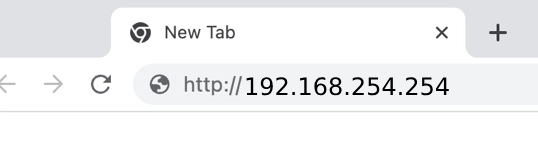
- In the address bar, type http://192.168.254.254 or simply 192.168.254.254 and press Enter.
- A login page will appear, either directly on the browser window or as a pop-up.
- For most routers, the default username is “admin” and the default password is also “admin”. You can find the default credentials printed on your router’s label or user manual.
- Once you’ve entered the correct username and password, click the “Login” button.
If your credentials are correct, you will be logged into your router’s admin panel where you can manage your Wi-Fi settings, security options, and much more.
Default Username and Passwords for 192.168.254.254
| Brand | Username | Password |
|---|---|---|
| Globe At Home | user admin | @l03e1t3 admin |
| PLDT | admin | 1234 |
| Frontier | admin | The Password is printed on the side or bottom of your router. |
Forgot IP Address Username and Password?
Did you forget your router’s IP address, username, or password? Don’t worry, there are ways to regain access:
1. Check the Router or Its Documentation:
- Look for the default credentials: Often, the IP address, username, and password are printed on a sticker on the back or bottom of your router or within its manual.
- Default username and password list: If you can’t find the information on your router, try our default username and password list.
2. Reset Your Router to Factory Settings:
- If you changed the default credentials and forgot them, you’ll need to perform a factory reset. Locate the small “RESET” button on the back of your router.
- Using a paper clip or a similar object, press and hold the reset button for about 10-15 seconds. This will reset all your router’s settings, including the IP address, username, and password, back to their defaults.
- Once the router restarts, you can access its admin panel using the default credentials.
- Remember to change the default credentials to a strong and unique password for enhanced security.
How to change WiFi password and name (SSID)?
- Open your web browser and type http://192.168.254.254/ in the address bar.
- A login window will appear. Enter the username and password for your router.
- Navigate to the “Advanced/Setup” tab or similar section depending on your router’s interface. Then, find the “Wi-Fi” settings and select “Wi-Fi Security Settings”.
- Update your Wi-Fi name and password:
- Wi-Fi name (SSID): Enter the new name you want to identify your network.
- Security mode: Choose “WPA/WPA2-PSK” for optimal security.
- Wi-Fi password: Enter a strong password that’s at least 8 characters long and includes a mix of upper and lowercase letters, numbers, and symbols.
- Click the “Save” button to apply your changes. Your current Wi-Fi connection will be interrupted for a short while as the new settings take effect.
Default 192.168.254.254 username and password
These are factory logins for devices that use 192.168.254.254. If you or your ISP changed the password, it will not work — reset the router to restore it.
| Router / ISP | Login address | Username | Password | Source |
|---|---|---|---|---|
| Older PLDT DSL modem | 192.168.254.254 | admin | 1234 (or printed on the label) | |
| Globe At Home prepaid Wi-Fi / older DSL | 192.168.254.254 | user | @l03e1t3 (older units) or printed on the label | |
| Kinetic by Windstream – Actiontec T3200 / T3260 / T3280 / T4220 | 192.168.254.254 | admin | Printed on the label | Official doc |
| Ziply Fiber – Arris NVG448BQ Fiber Gateway | 192.168.254.254 | — | Printed on the label | Official doc |
“Official doc” rows link to the manufacturer’s or ISP’s own documentation, via the ssid.ai router dataset (CC BY 4.0).
Routers and ISPs that use 192.168.254.254
- Globe At HomePhilippines · 192.168.254.254, 192.168.1.1
- PLDT Home FiberPhilippines · 192.168.1.1, 192.168.254.254, 192.168.15.1
- Kinetic by WindstreamUnited States · 192.168.254.254, 192.168.1.1
- Ziply FiberUnited States · 192.168.254.254
Ways people mistype 192.168.254.254
An IPv4 address is four numbers separated by three dots. These are the versions people type by mistake — none of them will open your router:
| What people type | Why it fails |
|---|---|
| 192.168.254.25 | The numbers are in the wrong order. |
| 192.168 254.254 | A space instead of a dot. Browsers read anything with a space as a search phrase. |
| 192.168.254254 | A missing dot, so it is not a valid address. |
The correct address is 192.168.254.254. Type it in the address bar, not the search box, with http:// in front.
Find your router’s IP address
If the address on this page does not open, your router uses a different one. Your device already knows it — it is called the default gateway.
- Windows: press Win + R, type
cmd, then runipconfig. Look for “Default Gateway”. - Mac: System Settings → Network → Wi-Fi → Details → TCP/IP → “Router”.
- Android: Settings → Wi-Fi → tap your network (or the gear icon) → “Gateway” or “Router”.
- iPhone / iPad: Settings → Wi-Fi → tap ⓘ next to your network → “Router”.
- Linux: run
ip route | grep default. - Label: most routers print the login address on a sticker underneath.
192.168.254.254 network details
192.168.254.254 is a private address, so it only works inside your home or office network. Anyone outside sees your public IP instead.
| Address type | Private (not reachable from the internet) |
|---|---|
| Private block | 192.168.0.0/16 (Class C private) |
| Usual network | 192.168.254.0/24 |
| Subnet mask | 255.255.255.0 |
| Usable addresses | 192.168.254.1 – 192.168.254.254 (254) |
| Broadcast | 192.168.254.255 |
| Typical DHCP pool | Set by the router — often 192.168.254.100 – 192.168.254.199 or 192.168.254.2 – 192.168.254.254 |
Frequently asked questions
What is 192.168.254.254?
192.168.254.254 is a private IP address used as the admin (login) page of a router or modem. It is used by Globe At Home, PLDT Home Fiber, Kinetic by Windstream, Ziply Fiber.
What is the default password for 192.168.254.254?
The most common default is username admin and password 1234. Many newer routers print a unique password on the label instead.
Why can’t I open 192.168.254.254?
You must be connected to that router, and the router must actually use 192.168.254.254. Check your default gateway, turn off VPN, and type http://192.168.254.254 in the address bar.
Is it safe to change settings at 192.168.254.254?
Yes, as long as you note what you change. The worst case is fixed with a factory reset. Always change the default admin password.
Can I access 192.168.254.254 from outside my home?
No. 192.168.254.254 is private and only reachable from inside the network. Some routers offer remote management or an app for that.