TP-Link Router Login
TP-Link is the world’s largest seller of home Wi-Fi routers. Recent Archer and TL-WR models open at tplinkwifi.net and ask you to create an admin password the first time; older units still use admin / admin.
Username / password: admin / admin
Login address: tplinkwifi.net or 192.168.0.1
Contents
TP-Link default username and password
| Router / ISP | Login address | Username | Password |
|---|---|---|---|
| Archer, TL-WR (2018 and newer) | tplinkwifi.net | — | You create it on first login |
| TL-WR / TL-WA (older models) | 192.168.0.1 or 192.168.1.1 | admin | admin |
| Deco mesh | 192.168.68.1 (setup is done in the Deco app) | TP-Link ID | Your TP-Link ID password |
| TL-MR 4G routers | 192.168.1.1 | admin | admin (newer models: create on first login) |
If the default login is rejected, the password was changed. The only way back in without it is a factory reset.
TP-Link default IP addresses
- 192.168.0.1
- 192.168.1.1
- 192.168.68.1
- 192.168.0.254
- tplinkwifi.net
- tplinklogin.net (older)
- tplinkrepeater.net
- tplinkmodem.net
- tplinkdeco.net
- tplinkeap.net
Logging in to your TP-Link router is the first step to managing your home network. This is important because it allows you to make changes to your Wi-Fi, such as the password, or fix problems with your network. From here you will learn how to log in to TP-Link Router easily.
Preparing for Login
Before you can log in to your router, you need to make sure your network is ready and that you have the information you need.
1. Connect to Your TP-Link Router
Ensure your computer or device is connected to your TP-Link router’s network. You can do this either wirelessly (using Wi-Fi) or with a cable (using an Ethernet cable).
2. Find the Router’s IP Address
Once you’re connected, you need to find the router’s IP address. This is the address you’ll type into your web browser to log in to the router. The default IP address is usually 192.168.0.1 or 192.168.1.1, but you can check the router label or manual to be sure.
Logging In
Now, let’s dive into the actual login process:
1. Open a Web Browser
Open the web browser you like to use (such as Google Chrome, Mozilla Firefox, Microsoft Edge, or Safari) on your device that is connected to the router.
2. Access the Router’s Web Interface
In the top bar of your web browser, type the IP address of your router (e.g., 192.168.0.1) or (192.168.1.1) and press “Enter”.
3. Enter the Username and Password
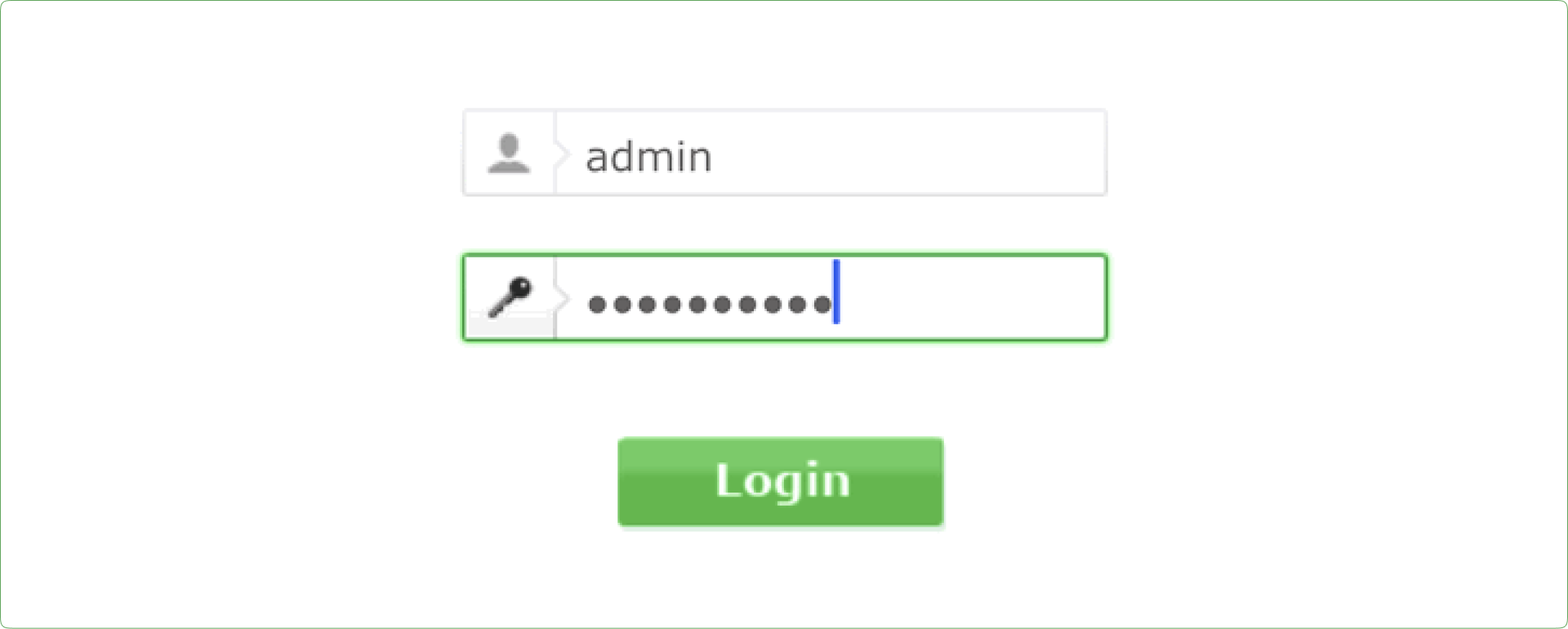
You will now be on the router’s login page. If you haven’t changed the default username and password, use the following credentials:–
- Username: admin
- Password: admin
Now, click on “Login” button. It’s strongly recommended to change these defaults Username and Password for security reasons.
If you entered the correct username and password, you will be logged into the TP-Link Admin interface. This is where you can change different settings for your router, including the Wi-Fi password and the router login password.
Navigates the Router’s Control Panel
Once you’re logged in, you’ll have access to your TP-Link router’s control panel, where you can make various configurations like:–
1. Wi-Fi Settings
You can change your Wi-Fi network name (SSID), password, and encryption type to enhance security.
2. Security Options
Explore security settings to protect your network, such as setting up a firewall or creating a guest network.
3. Parental Controls
Manage and restrict internet access for specific devices or users in your household.
4. Firmware Updates
Check for and install firmware updates to ensure your router’s optimal performance.
Tips for Safe and Effective Network Management
While you’re logged in, consider the following tips for a well-maintained network:–
1. Regularly Update Settings
Check your router’s settings regularly and make changes as needed.
2. Change Passwords Periodically
For enhanced security, change your router’s login information’s regularly.
3. Consult the User Manual
If you’re uncertain about specific settings, refer to the user manual or TP-Link’s official website for more guidance.
TP-Link models
Login details for individual models, each checked against TP-Link’s own documentation.
Internet providers that supply TP-Link routers
- Airtel Xstream FiberIndia · 192.168.1.1
- ACT FibernetIndia · 192.168.0.1, 192.168.1.1
- StormFiberPakistan · 192.168.0.1, 192.168.1.1, 192.168.100.1
- HathwayIndia · 192.168.0.1, 192.168.1.1, 192.168.100.1
- ExcitelIndia · 192.168.1.1, 192.168.0.1
Frequently asked questions
What is the default IP for TP-Link routers?
TP-Link routers use 192.168.0.1, 192.168.1.1, 192.168.68.1, 192.168.0.254 — or type tplinkwifi.net in your browser.
What is the default TP-Link router password?
Newer models often use a unique password printed on the label.
How do I reset my TP-Link router?
Hold the WPS/RESET or RESET button for about 10 seconds until the power LED blinks.
Other router brands
- Netgearrouterlogin.net · 192.168.1.1 · 192.168.0.1 · 192.168.100.1
- Linksysmyrouter.local · 192.168.1.1
- D-Linkdlinkrouter.local · 192.168.0.1 · 192.168.1.1
- ASUSrouter.asus.com · 192.168.50.1 · 192.168.1.1
- Tendatendawifi.com · 192.168.0.1
- Huawei192.168.3.1 · 192.168.8.1 · 192.168.100.1 · 192.168.1.1
- ZTE192.168.1.1 · 192.168.0.1
- Xiaomimiwifi.com · 192.168.31.1